3.3. Recovering Factory Default Settings
To restore the Cyclone® 10 LP FPGA Evaluation Board to factory default settings, perform the following steps.
- Make sure you have the latest Altera software tools, including the Quartus® Prime Standard Edition software, Nios® II processor, and IP cores. Refer to the Installing the Quartus® Prime Standard Edition Software for installation instructions.
- Launch the Board Test System (BTS) GUI application by one of the following methods:
- Nios® II command shell:
- Launch the Nios® II command shell.
- Change directory to <package dir>\examples\board_test_system\ .
- Type ./BoardTestSystem.exe to launch the BTS GUI.
- File manager:
- In a file manager GUI (such as File Explorer), change directory to <package dir>\examples\board_test_system\ .
- Double-click BoardTestSystem.exe to launch the BTS GUI.
- Nios® II command shell:
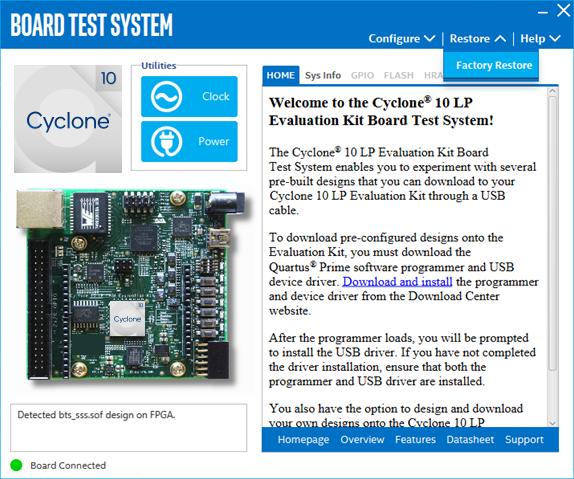
- On the Restore menu, click Factory Restore.
Figure 3. Board Test System GUI with Restore Menu
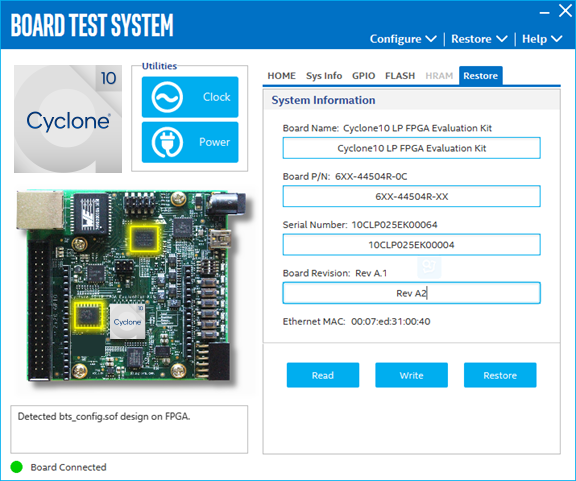
- Fill in the text boxes with your board details, as shown in the example below, and click Restore.
The restore process takes several minutes.Figure 4. Restoring Factory Defaults on the Cyclone® 10 LP FPGA Evaluation Board