Error Messages While Opening Intel® Application Optimization User Interface
Content Type: Error Messages | Article ID: 000097206 | Last Reviewed: 06/09/2026
Unable to start Intel® Application Optimization due to a Failed To Connect error or Unsupported / Missing Component / Connection Failure message appearing while trying to open the Intel® Application Optimization user interface.
Select the error message observed:
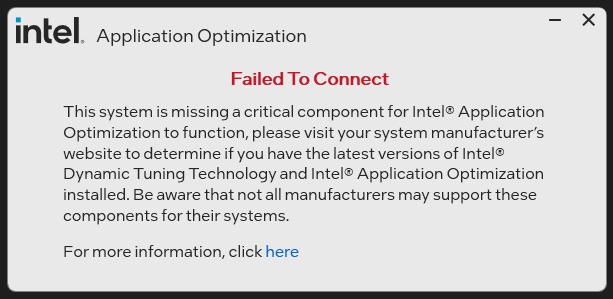
If the Unsupported / Missing Component/ Connection Failure message appears while trying to open the Intel® Application Optimization user interface, visit Unsupported / Missing Component / Connection Failure" While Opening Intel® Application Optimization User Interface to learn more.
Based on the description above, expand the error message below to find the steps to resolve your issue:
| Notes |
|
Follow the steps below to ensure your system includes all critical components to start Intel® Application Optimization user interface:
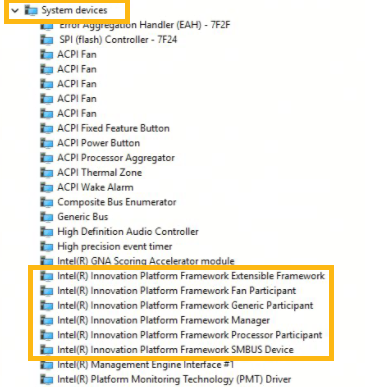
| Note | Some system manufacturers may not have the latest Intel® DTT to utilize the Intel® Application Optimization with Advanced Mode. If a version of Intel® DTT 11405 or later is not available, Intel® Application Optimization may not install or may install without Advanced Mode support. |
If the issue persists, check your system for remote or virtual desktop applications that may interfere with Intel® Application Optimization. These can be found in Device Manager under Display adapters or turn off Windows Virtual Machine settings under Turn Windows features on or off.
Visit "Unsupported / Missing Component / Connection Failure"" While Opening Intel® Application Optimization User Interface to learn more about a resolution.