Skip To Main Content
Support Knowledge Base

"Unsupported/ Missing Component/ Critical Error" Message While Opening Intel® Application Optimization User Interface

Content Type: Error Messages   |   Article ID: 000102684   |   Last Reviewed: 03/23/2026

Environment

APO, Application Optimization

Description

Intel® Application Optimization user interface Usupported/ Missing Component/ Critical Error message may appear while trying to open the user interface. The message content may vary depending on the issue detected. This is likely due to an Intel® Application Optimization component that is unavailable or disabled.

Visual example for an Unsupported/ Missing Component/ Critical Error message (details may vary):

Unsupported Missing Component message

Resolution

Follow the steps below to resolve your Unsupported / Missing Component/ Critical Error message:

  1. Identify your processor. For more help with identifying your processor, visit How to Identify My Intel® Processor.
  2. Find your processor section (Newer/Older Processors) in the table below, and follow the resolution steps associated with these processors.  

Processors

Resolution

Newer processors: 

  1. Download and install the latest Intel® Platform Performance Package
  2. If you still encounter a "Connection Failure,"  check if Intel® DTT device component is not disabled in device manager, under Software Components. If all components exist, but a connection still fails, this may be a result of a system manufacturer's decision not to include the APO policy within the BIOS. Contact your system manufacturer for more information. 

Older processors (limited support): 

  • 13th Generation Intel® Core™ Processors
  • 12th Generation Intel® Core™ Processors
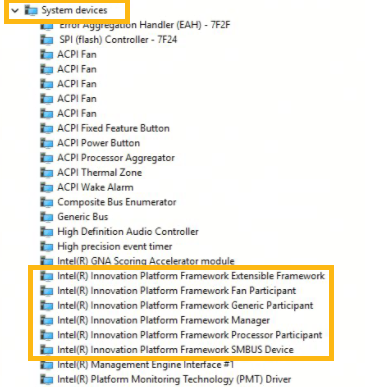
  1. Check BIOS settings and ensure Intel® DTT/Intel® IPF is enabled. Ensure drivers are visible in Device Manager under System devices. See the Additional Information Section below.
  2. If not, go to your  system manufacturer's site to find and install the latest Intel® IPF/ Intel® DTT or APO related drivers. 

Additional information

How to verify Intel® Innovation Platform Framework (Intel® IPF or Intel® DTT) is installed and enabled:

Check Intel® Innovation Platform Framework or Intel® Dynamic Tuning Technology drivers in Windows* Device Manager under System devices (see the example below).
Windows Device Manager screenshot