Skip To Main Content
Support Knowledge Base

Security Version Number (SVN) and System Firmware Update on Intel® Server M50CYP/D50TNP

Content Type: Install & Setup   |   Article ID: 000100153   |   Last Reviewed: 03/16/2026

Description

Tried to update the BIOS/FW but it fails and I see the following in the system event log:

Out-of-band update failure - Update from BMC failed - Minor Error:Update capsule has invalid SVN - Asserted

Resolution

On Intel® Server M50CYP/D50TNP, BIOS and BMC firmware have a Security Version Number (SVN). This SVN can be determined in the release notes with each release.

Additional steps are required when flashing a system firmware with a different SVN; otherwise, the update will fail with an invalid SVN event recorded in the System Event Log

Note
  • Normally, when upgrading from the EFI shell using startup.nsh, these steps will be performed automatically. However, during a downgrade or an update using other methods, these steps must be performed manually.
  • This article focused on the M50CYP/D50TNP products, but additional products have a similar process that is required, although the Jumper locations/numbers may vary. Consult the related product TPS, linked below, as needed


When flashing a system firmware with a different SVN, the backup/recovery region must be updated in addition to the active region.

Note

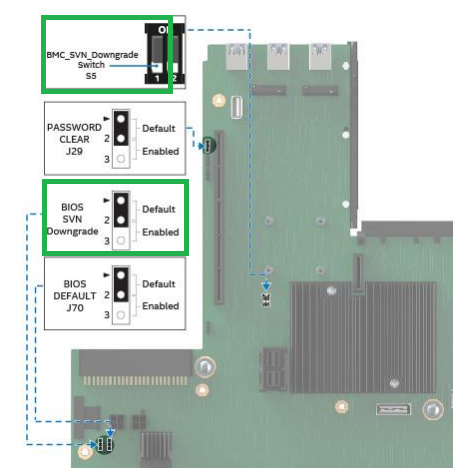
In case of downgrading to a version with a lower SVN, the respective jumper/switch must be configured before the firmware flash:

  • BIOS: Move the BIOS SVN Downgrade jumper to the Enabled position.
  • BMC: Move BMC_SVN_Downgrade Switch #1 to On (Switch #2 should remain in default position).


    Choose one of the following methods and follow the steps to flash both the backup and active region.

    From EFI shell:

    • Use the UpdBIOSRecovery_XXX.nsh/UpdBMCRecovery_XXX.nsh or
    • Use command "sysfwupdt.efi -u <firmware_filename> -recovery", for example
      • sysfwupdt.efi -u CoyotePass-bmc_prod_signed_cap_2.91.8a19dcde.bin -recovery ImmReset
      • sysfwupdt.efi -u R01013008_CoyotePass_LBG_ICX_UpdateCapsule_prd.bin -recovery ImmReset
    • If downgrading to version with lower SVN, enter "yes" when prompted for confirmation.


    From BMC Web Console (EWS):

    1. Select the Backup and Reset Immediately check box.
    2. Select the firmware file then click Upload.


    From remote system using Redfish*:

    • Run the following command:
      • BIOS: curl -u bmc_username:bmc_password -k -g --form upload=@bios_fw_filename "https://bmc_IP/redfish/v1/UpdateService/SoftwareInventory/BIOS/Actions/Oem/Intel.Oem.UpdateBIOS?imageflag=Backup&ImmReset"
      • BMC: curl -u bmc_username:bmc_password -k -g --form upload=@bmc_fw_filename "https://bmc_IP/redfish/v1/UpdateService/SoftwareInventory/BMC/Actions/Oem/Intel.Oem.UpdateBMC?imageflag=Backup&ImmReset"

    Additional information

    This process can be found in the product-related Technical Product Specifications: Self-Help Collection of Technical Product Specifications for Intel® Server Products

    Related Products

    This article applies to 18 products.

    Discontinued Products

    Intel® Server System D50TNP1MHCRAC Compute Module Intel® Server System D50TNP1MHEVAC Compute Module Intel® Server System D50TNP2MHSVAC Management Module Intel® Server System D50TNP1MHCRLC Compute Module Intel® Server System D50TNP2MHSTAC Storage Module Intel® Server System D50TNP2MFALAC Acceleration Module