Skip To Main Content
Support Knowledge Base

How to Update BIOS and Firmware Using Baseboard Management Controller (BMC) Web Console on Intel® Server Systems

Content Type: Product Information & Documentation   |   Article ID: 000056609   |   Last Reviewed: 05/11/2026

Environment

Intel® Server Systems Based on Intel® 62X Chipset

Description

Update BIOS, BMC firmware, and Management Engine (ME) remotely using the BMC Web Console on Intel Server Systems with Intel® 62X-based chipset

When to Update: Update firmware to resolve compatibility issues, security vulnerabilities, or to enable new features. Always review release notes before updating.

Resolution

Note

This process is applicable to Intel® Server Systems Based with Intel® 62X-based Chipset

Follow the procedure below to update the BIOS from an Intel® Server from the BMC:
  1. Download the BIOS and Firmware Update Package for UEFI for the respective model of server from the Intel® Server BIOS Support Central.
  2. Complete the initial login in the BMC.
  3. Go to the Configuration tab. (Only for Intel® Server Board M50CYP, select CPLD Update, and load file pfr_cyp_627p4_v4p2_cfm1_auto_prd.bin, then reboot.)
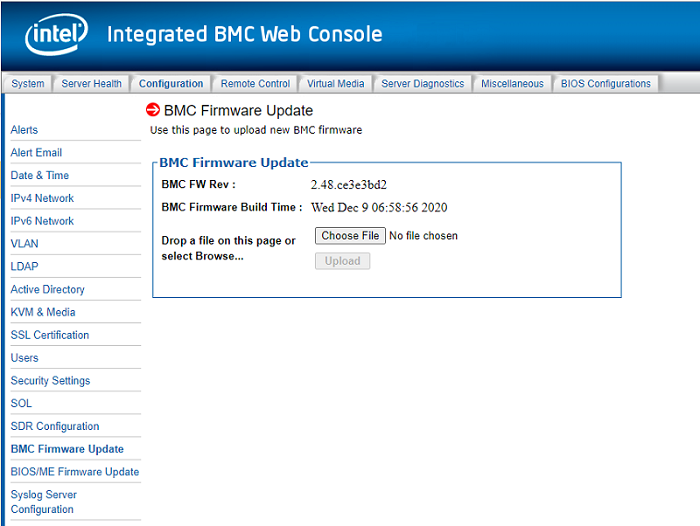
  4. Select BMC Firmware Update, and load the following files (as an example):
    • For Intel® Server Board S2600ST and S2600BP Family, use the file Purley_xxx.bin.
    • For the Intel® Server Board S2600WF Product Family, use the Purley_2.88.6999d21a.bin file.
    • For Intel® Server Board M50CYP product family, use the BMC - CoyotePass-bmc_prod_signed_cap_xxx.bin file.
    • Click Upload.
    • After the BMC Firmware update has finished, the following message appears: Reboot BMC: Please wait while the BMC reboots to complete the update after a few seconds, it is required to enter into the BMC with the credentials.
  5. Select SDR Configuration:
    • In the New configuration file: select master.cfg.
    • In the New SDR file: select S2600WFT.sdr, S2600STB.sdr , S2600BP.sdr or M50CYP.sdr depending on the server board product family.
    • Click on Load and then Parse, when it is done the following will be displayed: Updated Successfully then, click OK.
  6. Select BIOS / ME Firmware Update and upload the following files. The system should be restarted upon each image update as the wizard mentioned in the display with the message: Save to storage: Done. Please Restart System.
  • Important: Select the checkbox of Backup shown in the option named BIOS Region while updating the BIOS.
  • For Intel® Server Board M50CYP, use the following file:
    • BIOS Image: R0101000X_CoyotePass_LBG_ICX_prd.bin
  • For Intel® Server Board S2600WF and S2600BP, use the following files:
    • BIOS Image: R02010015_Production_ACM_TXT_BOOT.signed.cap
    • ME Image: R02010015_Production_ACM_TXT_ME.signed.cap
    • FD Image: R02010015_Production_ACM_TXT_FD.signed.cap
  • For Intel® Server Board S2600ST, use the following files:
    • BIOS Image: R0xxx_Production_ACM_TXT_BOOT.signed
    • ME Image: R0yyy_Production_ACM_TXT_ME.signed
    • FD Image: R0zzz_Production_ACM_TXT_FD.signed

Choose file


If you need more information, review the BIOS/ME (Management Engine) Firmware Update section in the User Guide for Intel® Remote Management Module 4 (Intel® RMM4) and Integrated BMC on Intel® Server Boards and Intel® Server Systems Based on Intel® 62X Chipset.