Skip To Main Content
Support Knowledge Base

How to View Processor Frequency and Other Parameters in Intel® Extreme Tuning Utility (Intel® XTU)

Content Type: Troubleshooting   |   Article ID: 000028519   |   Last Reviewed: 08/19/2026

Environment

Operating System

Windows® 10, 64-bit*
All Intel® Processors supported by Intel® Extreme Tuning Utility (Intel® XTU)

Description

How do I view frequency and other parameters in Intel® Extreme Tuning Utility (Intel® XTU) user interface?

Resolution

Intel® Extreme Tuning Utility (Intel® XTU) is supported on Intel® processor models that include the suffix "K" in the processor number. Refer to How to Identify My Intel® Processor.

Find the list of processors supported by Intel® XTU.

To monitor processor frequency, graphics frequency, temperature, memory frequency, and other parameters for processors in Intel® XTU, follow these steps:
  1. Download and install Intel® Extreme Tuning Utility (Intel® XTU).
  2. Launch the Intel Extreme Tuning Utility (Intel XTU).
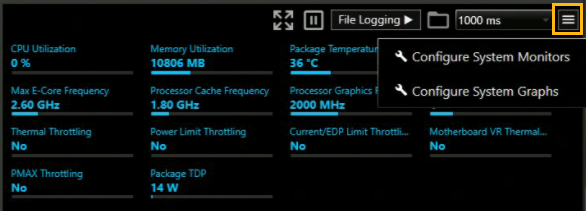
  3. In the lower right cornerof System Information section, click the Menu icon (three horizontal lines) in the upper right corner of the System Monitor window.

    Screenshot of the Intel System Monitor interface showing the Menu icon (three horizontal lines) in the upper-right corner, with options for Configure System Monitors and Configure System Graphs displayed.

  4. This menu displays the following options:
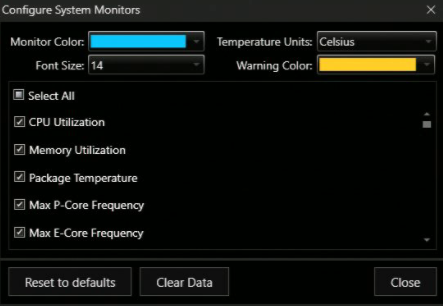
    • Configure System Monitors select the system monitoring parameters to display.
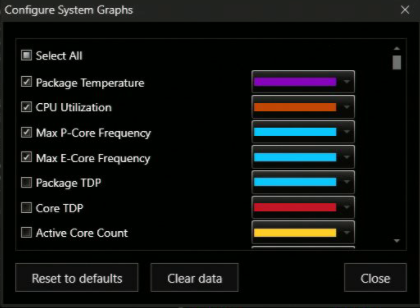
    • Configure System Graphs: select the graph to display and customize colors.
  5. Select either Configure System Monitors or Configure System Graphs.
  6. Select the parameters you want to display.

Configure System Monitors window showing selectable system monitoring options   Configure System Graphs window with selectable system graph options and color settings.