Thunderbolt™ Share Connection Issue When Norton™ 360 Smart Firewall Installed
Content Type: Troubleshooting | Article ID: 000102997 | Last Reviewed: 07/17/2026
Description
Users may be unable to establish a Thunderbolt™ Share connection between two PCs when Norton™ 360 is installed on one or both systems.
Thunderbolt™ Share may remain in a waiting or connecting state even though:
This behavior occurs because Norton™ 360 Smart Firewall may automatically classify the Thunderbolt Networking connection as a Public network, causing network communication required by Thunderbolt™ Share to be blocked.
Symptoms
You may observe one or more of the following symptoms:
Cause
Norton™ 360 Smart Firewall may configure the newly created Thunderbolt Networking interface as a Public network. When the network is configured as Public, Norton™ 360 may restrict network traffic required for Thunderbolt™ Share peer-to-peer communication.
As a result, Thunderbolt™ Share is unable to establish a connection between the systems.
Resolution
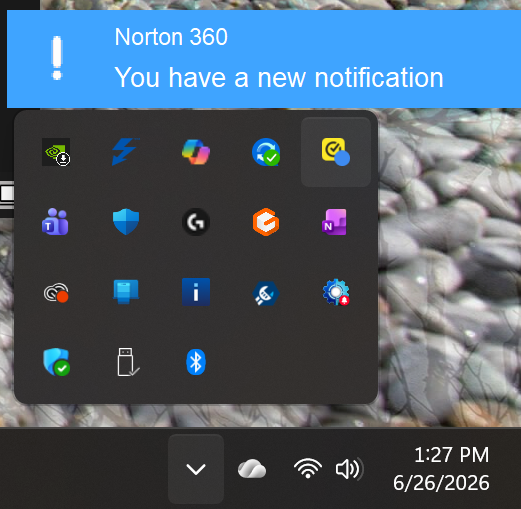
Step 1: Check for Norton Notifications
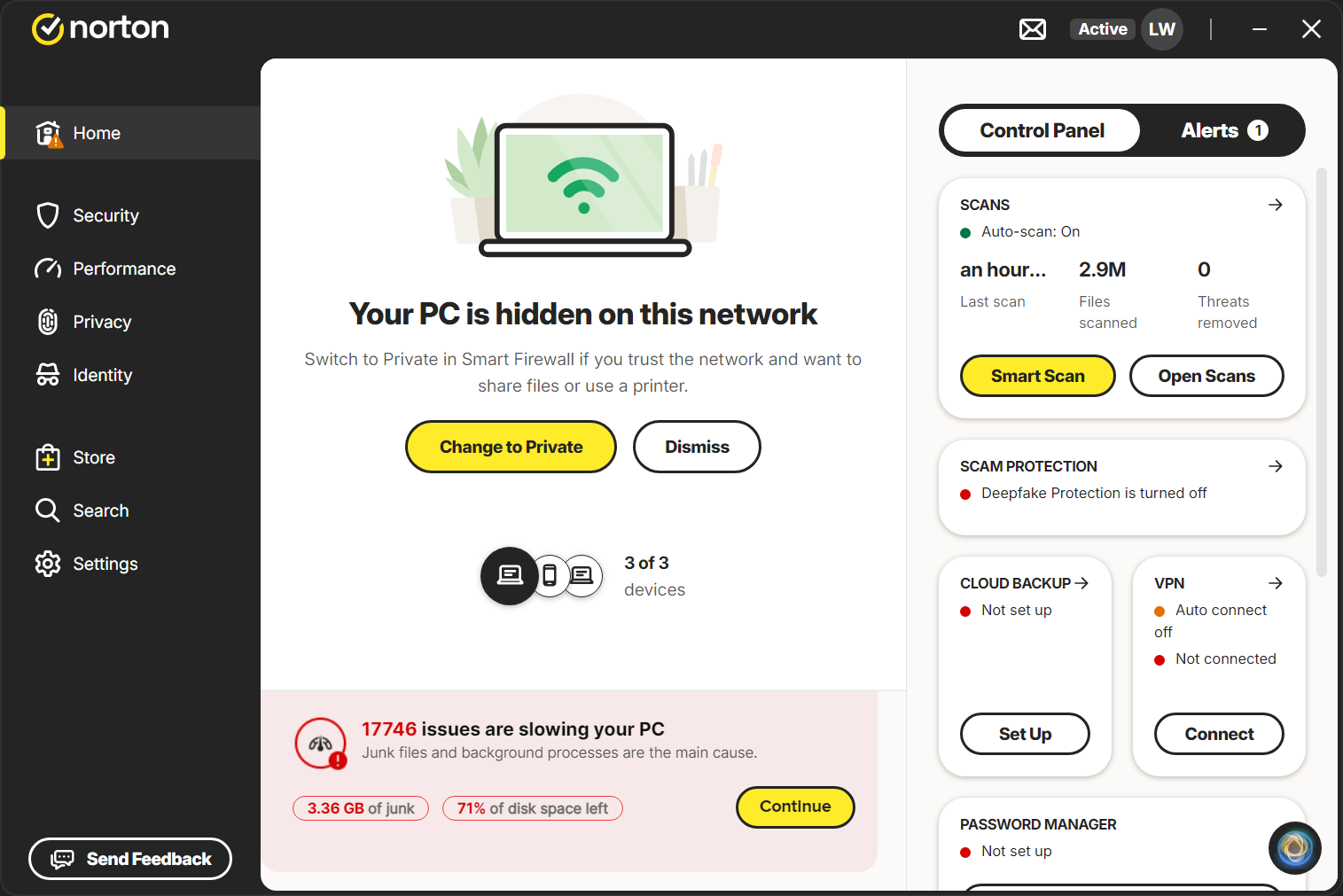
Step 2: Open Norton Smart Firewall
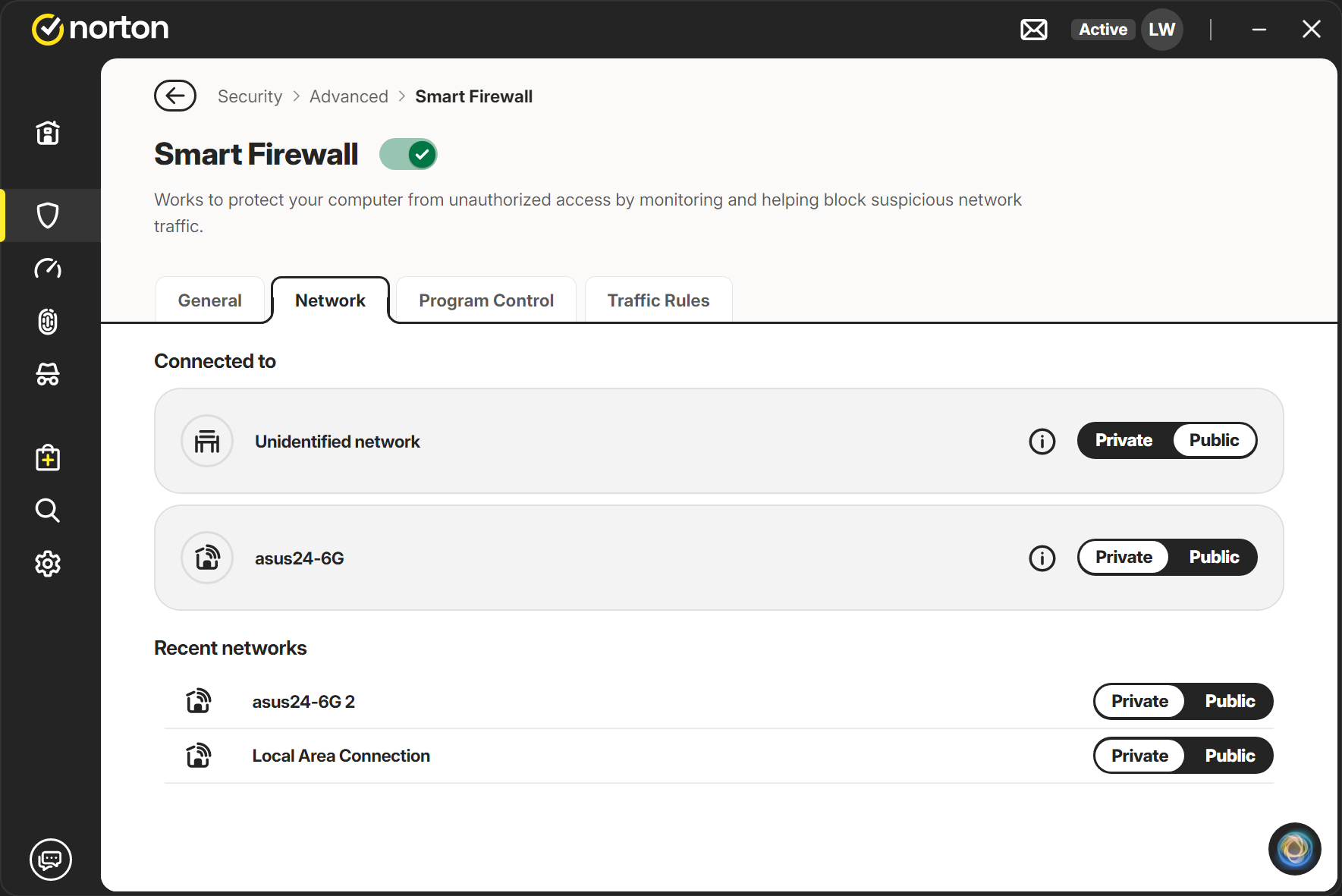
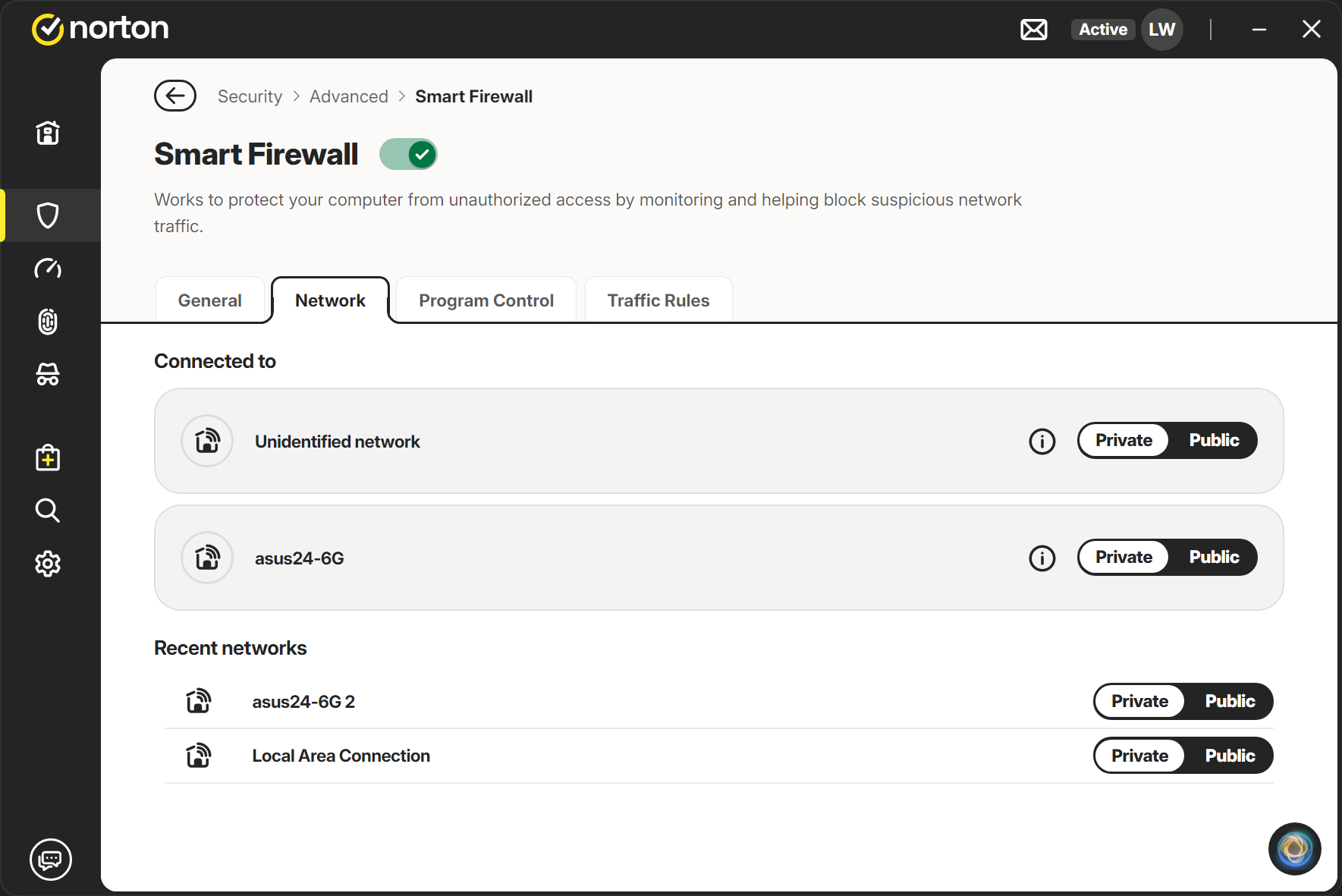
Step 3: Change Network Trust Level
Step 4: Reconnect Thunderbolt™ Share
After the network is configured as Private, Thunderbolt™ Share should be able to establish the connection successfully.