Skip To Main Content
Support Knowledge Base

Thunderbolt™ Share Connection Issue When Norton™ 360 Smart Firewall Installed

Content Type: Troubleshooting   |   Article ID: 000102997   |   Last Reviewed: 07/17/2026

Environment

Operating System

Windows 11*

Description

Users may be unable to establish a Thunderbolt™ Share connection between two PCs when Norton™ 360 is installed on one or both systems.

Thunderbolt™ Share may remain in a waiting or connecting state even though:

  • Thunderbolt™ Share is installed correctly.
  • A supported Thunderbolt™ Share licensed PC, dock, or accessory is being used.
  • The Thunderbolt cable connection is functioning properly.
  • Both systems meet the software requirements.

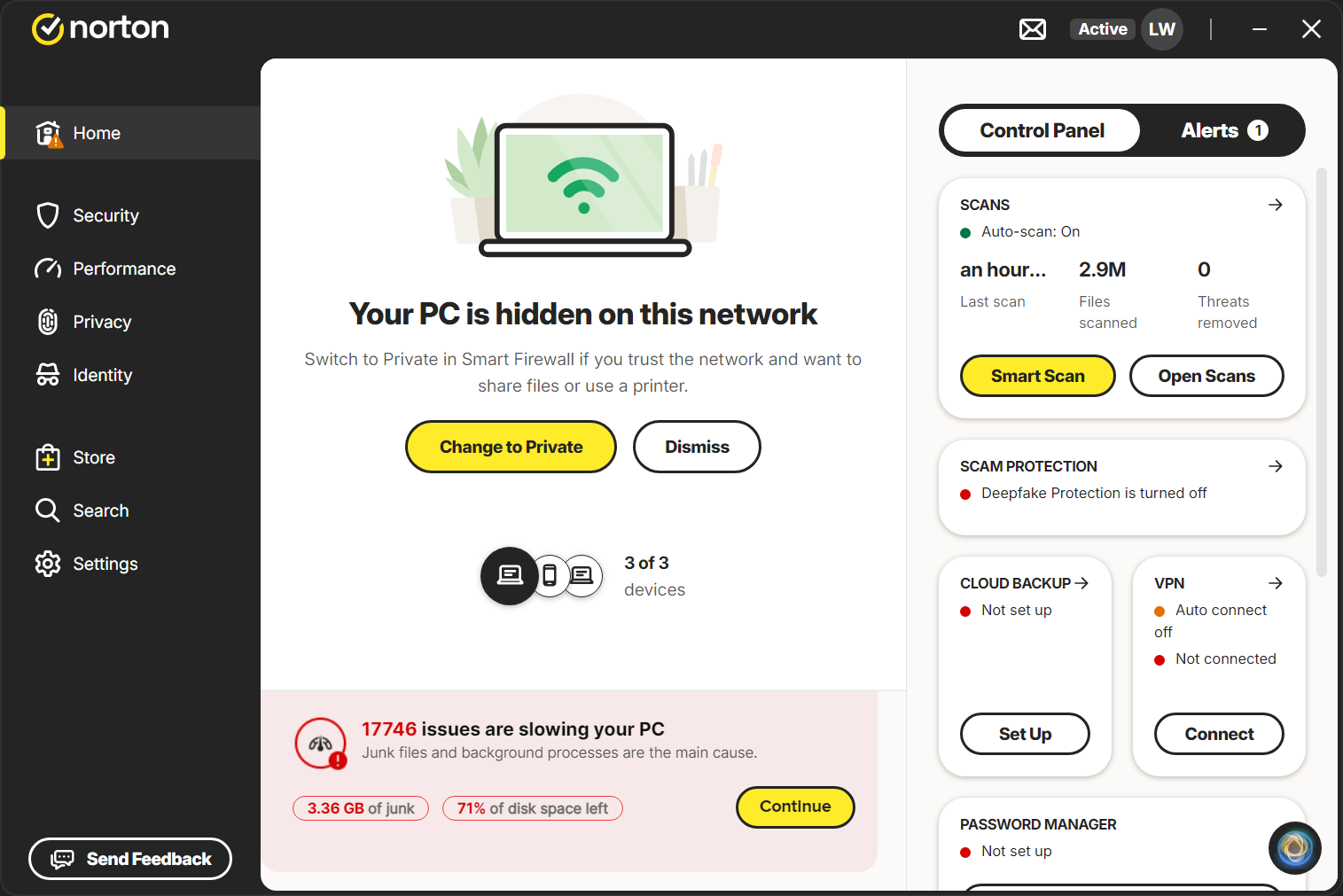
This behavior occurs because Norton™ 360 Smart Firewall may automatically classify the Thunderbolt Networking connection as a Public network, causing network communication required by Thunderbolt™ Share to be blocked.


Symptoms

You may observe one or more of the following symptoms:

  • Thunderbolt™ Share cannot discover the remote PC.
  • Pairing or connection requests fail.
  • The Thunderbolt™ Share application remains stuck at the connection screen.
  • File transfer, screen sharing, or peripheral sharing features do not start.
  • Norton™ 360 displays a notification indicating that a new or hidden network has been detected.


Cause

Norton™ 360 Smart Firewall may configure the newly created Thunderbolt Networking interface as a Public network. When the network is configured as Public, Norton™ 360 may restrict network traffic required for Thunderbolt™ Share peer-to-peer communication.

As a result, Thunderbolt™ Share is unable to establish a connection between the systems.


Resolution

Step 1: Check for Norton Notifications
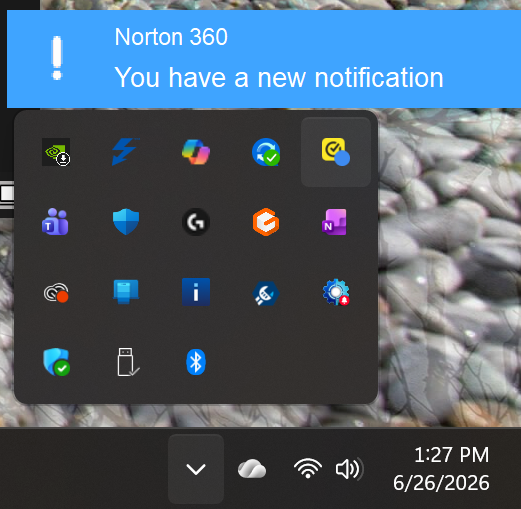
  • Connect the two Thunderbolt™ Share systems.
  • Open the Windows notification area (system tray).
  • Look for notifications from Norton™ 360 indicating that a new network has been detected

Example Image


Step 2: Open Norton Smart Firewall

  • Launch Norton™ 360.
  • Navigate to Smart Firewall.
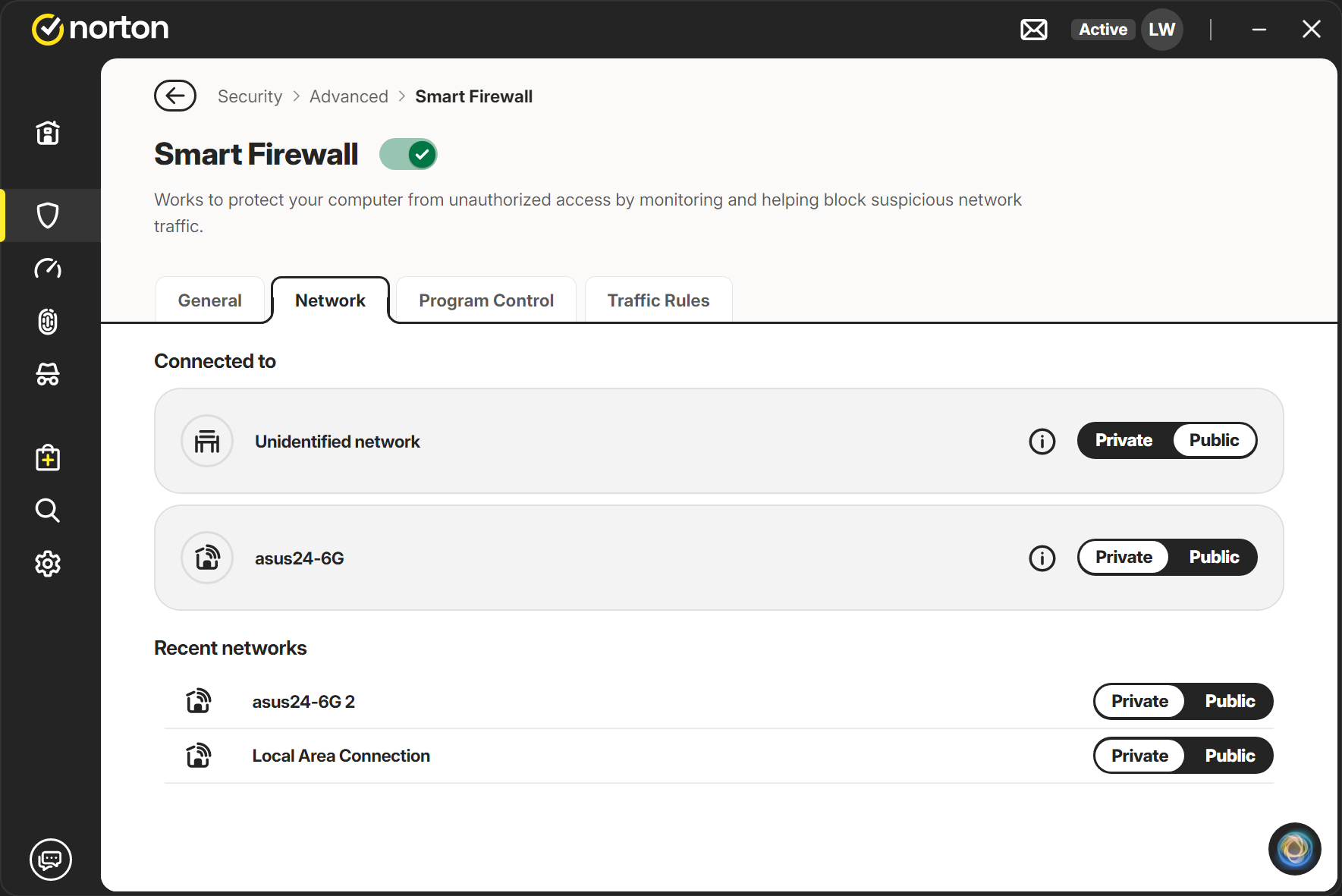
  • Locate the Thunderbolt Networking connection detected by Norton™ 360.

Example Image


Step 3: Change Network Trust Level

  • Verify whether the Thunderbolt Network is classified as Public.

Example Image

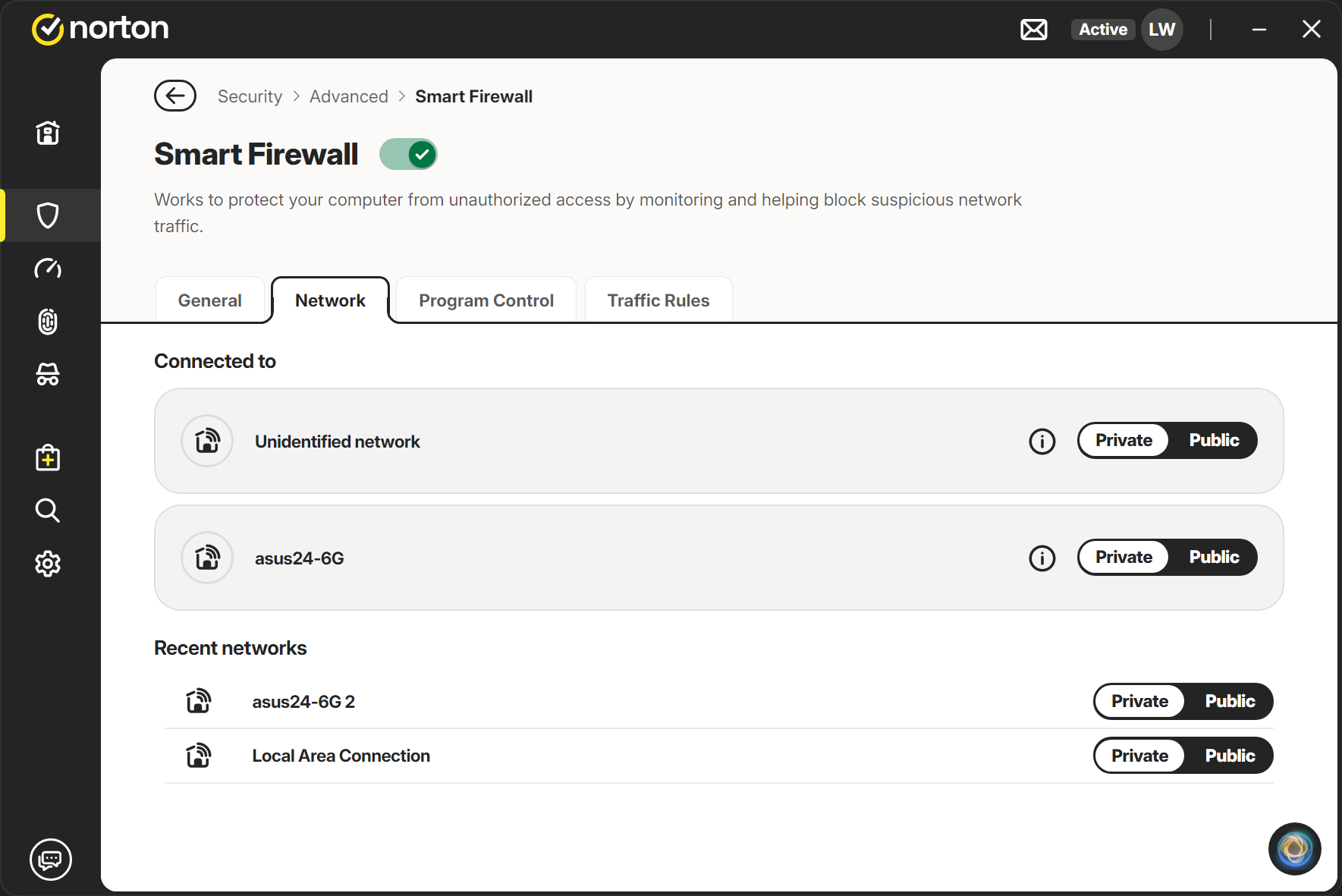
  • Change the network classification to Private.

Example Image


    • Apply and save the configuration changes.


    Step 4: Reconnect Thunderbolt™ Share

    • Disconnect and reconnect the Thunderbolt cable if necessary.
    • Restart the Thunderbolt™ Share application.
    • Attempt the connection again.

    After the network is configured as Private, Thunderbolt™ Share should be able to establish the connection successfully.


    Related Products

    This article applies to 1 products.