Intel vPro® Fleet Services (VFS) Is Unable to Register a Tenant Setup via Intune Portal and Waitlisted the Request
Content Type: Install & Setup | Article ID: 000102503 | Last Reviewed: 03/19/2026
Facing challenges to register Intel vPro® Tenant through the Microsoft Intune* portal, where Intel vPro Fleet Services portal joined me to a waitlist.
While trying to register a tenant via Intune* portal, we would experience an issue where the Intel® vPro Fleet Services (VFS) is unable to register a Tenant Setup via Intune Portal and waitlisted the request.
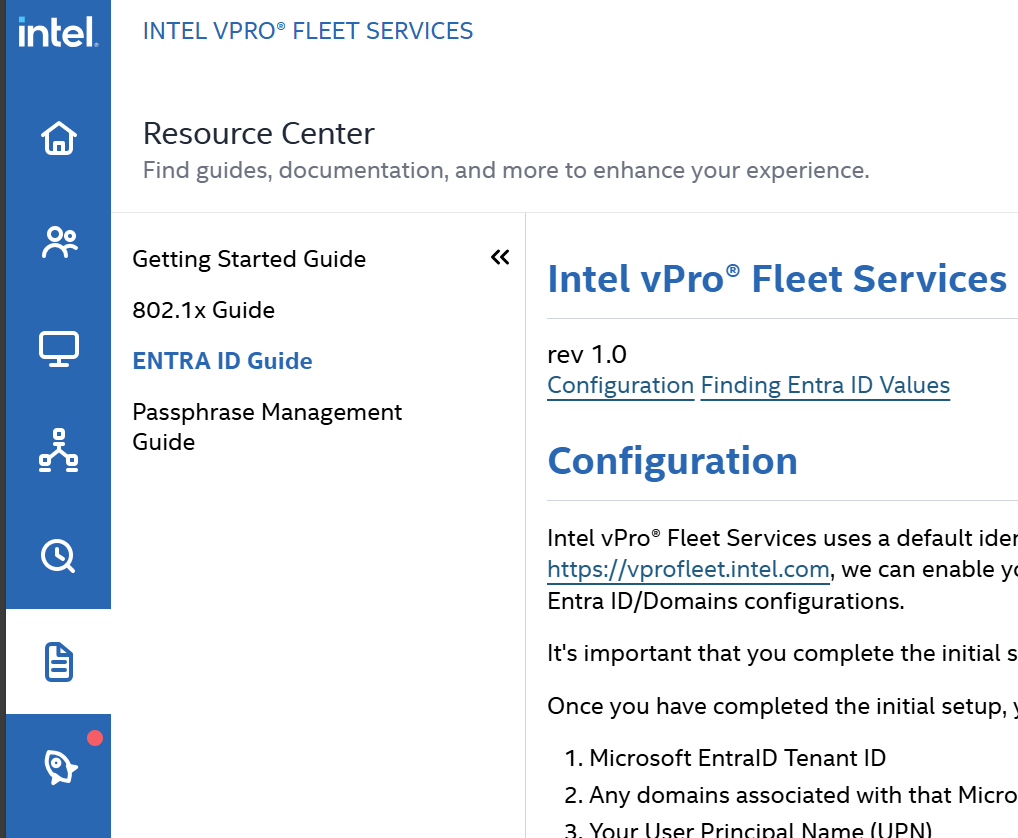
Follow the instructions available at the Intel® vPro Fleet Services portal > Resource Center > Entra ID Guide for the issue seen in the screenshot given below.
Entra ID link:
Please refer to the screenshot below, which shows the issue while trying to register a Tenant through Intune Portal.

For further detailed instructions, refer to the summary in the resources center shown below.
Intel vPro® Fleet Services uses a default identity provider for initial setup. After you have successfully logged in to Intel vPro® Fleet Services. We can enable your Microsoft Entra ID Tenant, which will also enable Microsoft Intune access.
It's important that you complete the initial setup using Intel's default identity provider before we configure Microsoft Entra ID.
Once you have completed the initial setup, you will need to provide the following information to us:
Important: If your UPN is different from the email address you used to register, you will need to take an additional step:
Use this link to send us the above details when you are ready: Send Entra ID / Intune Setup Request.
Refer to the screenshot below which shows the resources center page where you will find the resolution details.