Error On Chrome* or Edge*: "Sorry, something went wrong while trying to scan"
Content Type: Troubleshooting | Article ID: 000102245 | Last Reviewed: 10/08/2026
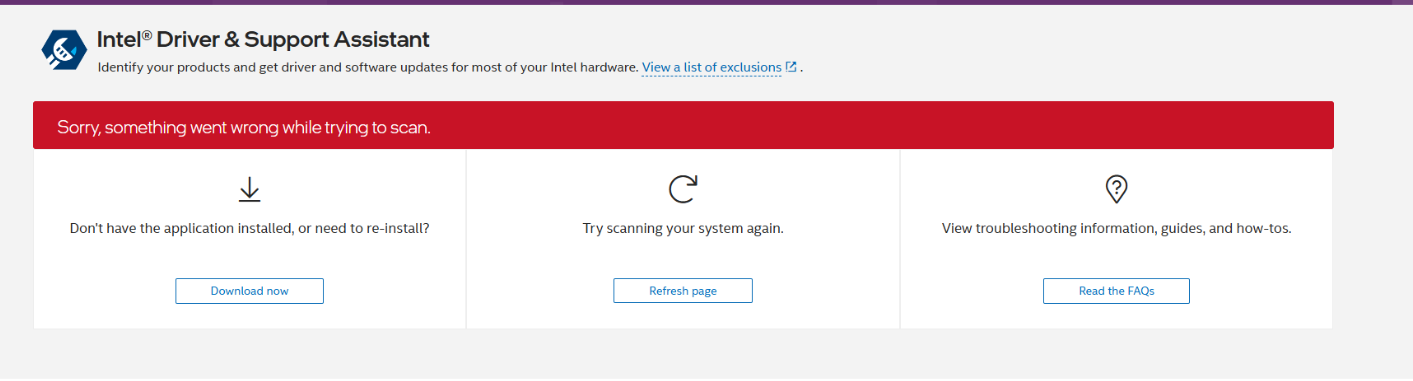
Error On Google Chrome* or Microsoft Edge*: Sorry, something went wrong while trying to scan in the Intel Driver & Support Assistant.
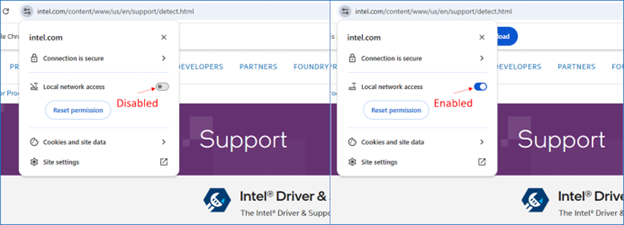
Google Chrome* Recommended Steps:
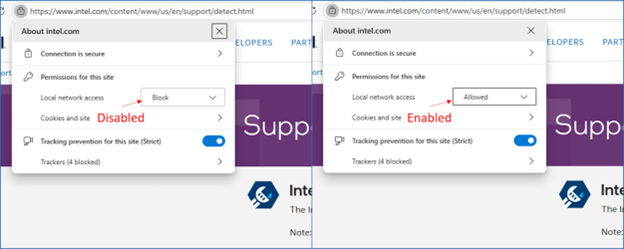
Microsoft Edge* Recommended Steps:
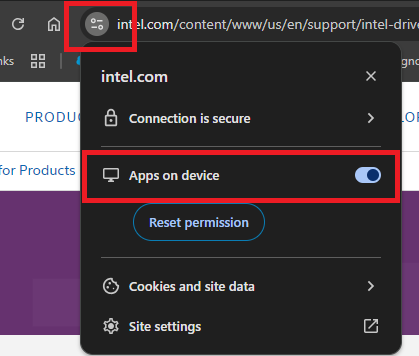
If the issue continues even after enabling Local Network Access, make sure the Apps on Device setting is also activated. Please follow the steps outlined below:
Google Chrome* Recommended Steps:
1. Click the View Site Information icon on the left side of the address bar.
2. Click the toggle button next to Apps on Device to enable it.
3. Refresh the page. Note: If Apps on Device is not visible, proceed to Step 4.
4. Select Site Settings.
5. Scroll down and locate Apps on Device.

6. Select "Allow" or "Ask (default)".
7. Refresh both pages.
8. Go back to the IDSA Page and click the View Site Information icon on the left side of the address bar.
9. Click the toggle button next to Apps on Device to enable it.
10. Refresh the page.
Microsoft Edge* Recommended Steps:
1. Click the View Site Information icon on the left side of the address bar.
2. Click the toggle button next to Apps on Device to enable it.
3. Refresh the page. Note: If Apps on Device is not visible, proceed to Step 4.
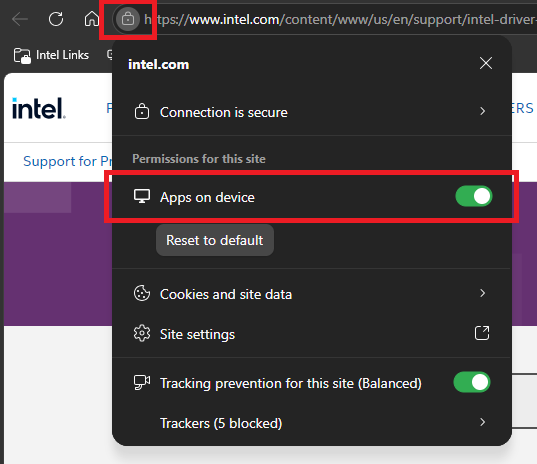
4. Select Site Settings.
5. Scroll down and locate Apps on Device.

6. Select "Allow" or "Ask (default)".
7. Refresh both pages.
8. Go back to the IDSA Page and click the View Site Information icon on the left side of the address bar.
9. Click the toggle button next to Apps on Device to enable it.
10. Refresh the page.
Alternate Recommended Steps
| Note | In some instances where the above does not work, IDSA needs to be reinstalled. |
Local Network Access (LNA) is a security feature added in Chrome and Chromium browsers like Microsoft Edge starting with version 142. The new prompt you are seeing to grant access is not due to any change with the Intel Driver & Support Assistant (IDSA) or how it functions. IDSA scans the components and drivers on your PC and recommends updated drivers to install. In order for IDSA to continue functioning as intended, this new permission needs to be enabled. IDSA only collects device information from your PC and does not access anything on your local network. We are committed to protecting your privacy. See our Privacy Notice for more information.
If you prefer not to enable those permissions, you can use a non-Chromium browser, such as Firefox* to run IDSA.