Skip To Main Content
Support Knowledge Base

What Is Intel® In-field Scan on Intel® Xeon® Processors?

Content Type: Product Information & Documentation   |   Article ID: 000098402   |   Last Reviewed: 03/03/2026

Environment

intel Xeon 4th Gen, 5th Gen and Xeon 6

Intel® In-field Scan is a new processor feature available in Sapphire Rapids, Emerald Rapids, and Intel® Xeon® 6 CPUs. It enables the detection of faults by executing tests within cores, caches, and on-core arrays. In-field Scan is executed via software (SW).

Having fast test times allows enterprise data centers/users or cloud service providers to test their processors without having to take the entire node offline.

Firmware (FW) and SW implementation provided for the Intel® In-field Scan has three elements:

  • Test Images, which are test patterns for the cores
  • A Linux* device driver
  • BIOS reference code

Intel® In-Field Scan offers three types of testing features:

  1. Scan At Field (SAF) tests the core logic for faults by using scan test images (that is, single to multi-images).
  2. Array BIST is a built-in self-test (BIST) for on-core caches and arrays. It does not require a test image.
  3. Structural Based Fault Testing (SBFT) uses test images comprised of x86 instructions and various internal test capabilities to provide increased fault coverage.
Location Usage Model Description

Live Fleet Operation

 System Integrity

Periodic testing of the cores to identify and allow removal of defective parts. Performing on-demand testing at points of interest, for example, starting a Virtual Machine (VM), or starting a workload.

Data Center Repair Flow

On-demand testing during debugging and repairs

It could be used to help diagnose when a node is not functioning as intended.


Intel® In-field Scan leverages the infrastructure from Intel® SGX and its associated firmware components, such as MCHECK and so on. As a result, specific configurations can be supported. 

For more details,  review the Intel In-Field Scan Enabling Guide or Intel® In-Field Scan for Eagle Stream(CNDA Required) 

Benefits

Benefits of using Intel® In-field Scan:

  • A new CPU capability designed for in-fleet detection of components that have failed over time.
  • Proactively identify a faulty core on an actively running system.
  • Running on one core does not disrupt the functional operation of other cores within the processor.

Scan at Field (SAF):

  • Uses the SCAN chain circuits to allow end users to test the processor cores.
  • Very fast test time, less than 200 ms per core.
  • Uses Intel-provided test images for testing.

Array Built-in Self-Test (BIST):

  • Detects faults within arrays and caches of a core.
  • Very fast test time, less than 5 ms total.
  • No test images are required.

Structural-Based Fault Test (SBFT)

  • Expands faults core coverage by using various firmware, debug hooks, and other internal testing structures.
  • Very fast test time less than 200 ms.
  • Uses Intel-provided test images for testing.


Enablement

Hardware Components

  • SKU requirement: Intel® Software Guard Extensions (Intel® SGX) = Enable.
  • Platform Straps: TXT_PLTEN must be pulled high.

Software Components

  • BIOS.
  • Intel® Total Memory Encryption (Intel® TME) = Enable (Processor Reserved Memory Region Registers [PRMRR]).
  • Intel® TME Bypass = Enable (for non-PRMRR).
  • Intel® In-field Scan = Enable.
  • Structural Based Fault Test (SBFT) = Enable.
  • Linux* driver.
  • Command-line Interface (CLI) application.
  • Test images for Scan at Field (SAF) and SBFT.
  • The CLI and test images will be included in the Customer Intel® In-field Scan package.


Installing Test Images

In-Field Scan Documentation:

Intel® Xeon® In-Field Scan Test Scan Images for Emerald Rapids Processors [EMR]

  1. Copy the scan test images to the Linux file system:
    1. Create a directory named ifs_0 within the /lib/firmware/intel/
    2. Download the scan test images that are included via testing kit, they may be named (06-8f-08-01.scan) to the new directory that was created:    /usr/lib/firmware/intel/ifs_0
      Note Depending on the processor and stepping for your platform, for the highest coverage include all the scan test images provided within the kit.
    3. When running sbtf on a Granite Rapids processor the SBFT test images must be stored in: /usr/lib/firmware/intel/ifs_2
      Note The file name should follow the default name structure above FF-MM-SSNN. For example, if the CPU FF-MM-SS-NN is 06-ae-00-01 the file name would be: 06-ae-00-01.sbft
  2. Load Intel® In-Field Scan into Kernel-Mode Driver (KMD):

    Run the command: `sudo modprobe intel_ifs

    Note This must be done after every SUT reboot unless the driver is automatically loaded via /etc/modules or /etc/modules-load.d/

    If any issues occur during testing, use the following list of commands to obtain version numbers of software and firmware. Refer to the latest BKC to determine the latest available versions.

    `dmidecode -s bios-version` #BIOS version
    `uname -r` #kernel version
    `grep -m1 microcode /proc/cpuinfo` #ucode patch version
    `ll /lib/firmware/intel/ifs/ifs_0` #Scan test images file size;
    ‘modprobe -v intel_ifs’ #driver version

  3. Running In-field Scan test

    Run CLI application on all cores. The time interval between SAF runs per core is set to 3 minutes. After a system reset, a 3-minute interval is required before In-field Scan can be initiated.

    1. Download and copy the latest In-field Scan CLI tool in_field_scan_app to your system.
    2. Run in_field_scan_app after waiting at least 3 minutes from a previous test on the same core:
      Command: ‘ ./in_field_scan_app -r-1 -f3 -D -E -X -P -F -s0 -l0 -w3’
      Note The use of l0 or l1 is a necessary parameter and the use of s0 is a necessary parameter.
    • The 3-minute limitation is enforced by microcode.
    • A full scan per core takes a maximum of 200 ms.
    • Adjust the cycle time between scans with the -w option (the range is 3 to 525600); scan will run once when omitting the -w or using -w0.
    • Use -h to check for more command line options.
       
  4. Stopping In-field Scan test:

    Stop testing in two different choices.

    1. Within the same terminal press: ‘ctrl-c
    2. Different terminal input command: ‘ ./in_field_scan_app -s0
       
  5. Test Pass or Fail Criteria:

    The test passes if:

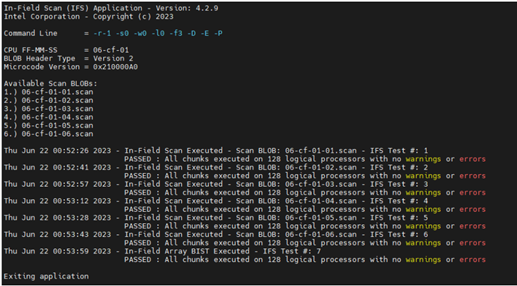
    1. Successfully completes the iteration (see the example).
    2. errorFile” and “SAF_User_Files folder” are created and updated under the same location as where in_field _app is located.

Example image

Public Paper - Finding Faulty Components in a Live Fleet Environment

Related Products

This article applies to 3 products.