Intel® Endpoint Management Assistant (Intel® EMA) Upgrade Process Fails With Error Message “IIS NWebsec Error”
Content Type: Troubleshooting | Article ID: 000091583 | Last Reviewed: 11/12/2025
Before doing the software upgrade, back up the following files.
Backup EMA SQL Database and MeshCertSettings outlined in the Intel® EMA installation guide section 1.4.1- Backup Important Data Updated
Intel® Endpoint Management Assistant (Intel® EMA) Server Installation and Maintenance Guide
After upgrading, if the Intel® EMA WebUI does not work, and IIS produces the following error.
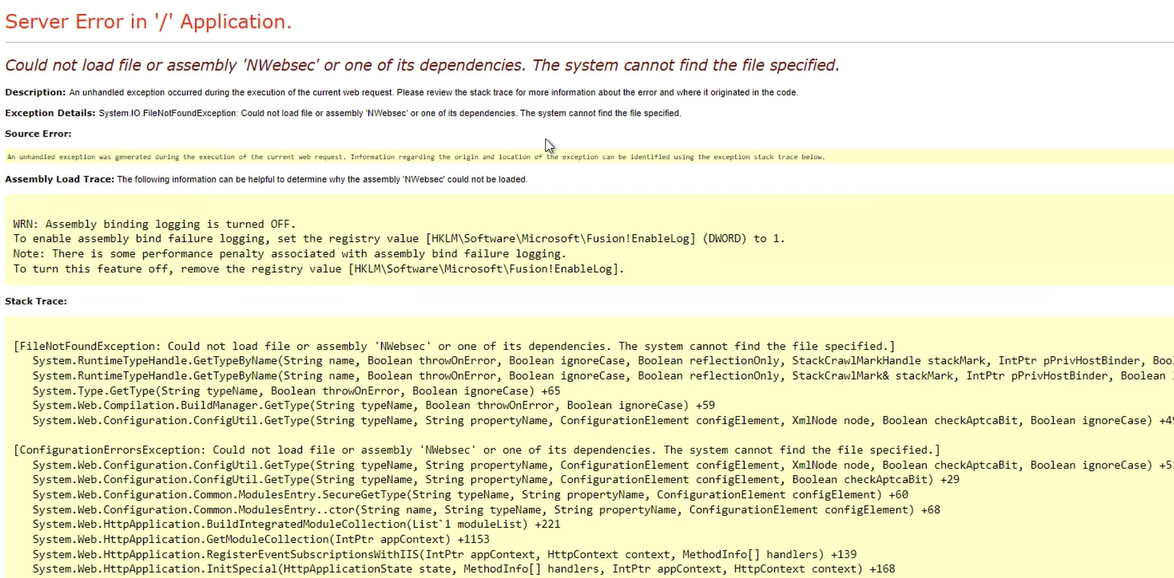
Check if the following C:\inetpub\wwwroot\bin\ directory has been deleted; an uninstall and reinstall of Intel® EMA may be necessary. When uninstalling the Intel® EMA software, don’t remove the Database or the Mesh Cert; this will likely help you avoid the step of restoring the DB and cert from backup.
| Note |
If the error message is not clear, as the picture above, please look at the Internet Information Services (IIS) error on the local server https://localhost to get more details about the IIS error message. |
Symptoms of the problem:
Permissions on the C:\inetpup\wwwroot\bin\ folder, where a number of NWebsec files get installed, are restrictive, or the bin directory was deleted.
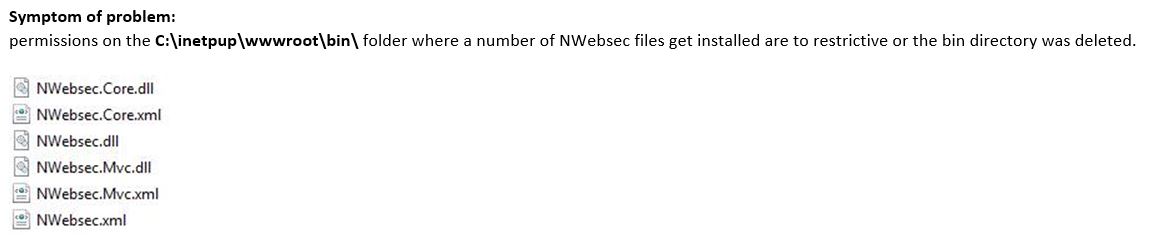
Verify if EMASiteCoreReact.zip is present, and if not, copy it to the proper location.
Check the following locations to see if EMASiteCoreReact.zip exists...
C:\Windows\System32\config\systemprofile\AppData\Roaming\PlatformManager\SitePackages\Default Web Site
Or
C:\Users\<DomainUser>\AppData\Roaming\PlatformManager\SitePackages\Default Web Site\
If the EMASiteCoreReact.zip is in the folder
If the EMASiteCoreReact.zip is missing
Paste the files to the following location that is applicable in your environment
C:\Windows\System32\config\systemprofile\AppData\Roaming\PlatformManager\SitePackages\Default Web Site\
C:\Users\<DomainUser>\AppData\Roaming\PlatformManager\SitePackages\Default Web Site\
Restart the Platform Manager service (EMA) and log in to the EMA WebUI