How to Enable Secure Boot in Intel® Server Boards?
Content Type: Error Messages | Article ID: 000054899 | Last Reviewed: 05/05/2026
The system displays a Secure Boot warning message during every boot cycle. While the system boots normally to the operating system, this warning indicates that device firmware is not properly authenticated, which may pose security risks and cause boot delays.
Warning Message:
Unable to load device firmware due to secure boot policy.
Please ensure device firmware is properly certified.
The device firmware must be authorized by a key in the valid signature database.
If the secure boot feature is not desired, disable UEFI secure boot in system setup.
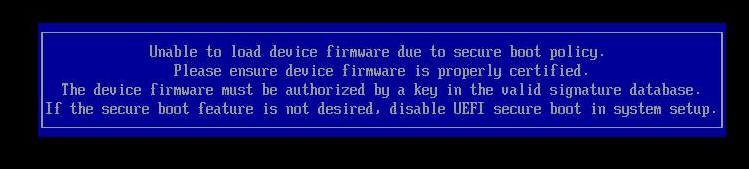
This warning appears when Secure Boot policy is enabled but device firmware (such as network cards, storage controllers, or other expansion cards) lacks proper digital signatures or certificates in the system's trusted key database. The system allows boot to continue but flags the security concern.
Follow these steps to properly configure Secure Boot and resolve the warning message
After reboot, verify that the secure boot warning no longer appears during system startup.
Check that 'Current Secure Boot State' shows 'Enabled' in BIOS Setup to confirm proper configuration.
Alternative Solution:
If prefer to disable the warning without enabling Secure Boot, set 'Attempt Secure Boot' to 'Disabled' in the same BIOS location.
| Notes |
|
Once the system boots into the Operating System, follow the steps below to confirm if secure boot is enabled:
If secure boot is working, TRUE = enabled and functioning; FALSE = disabled or not working.
Important:
Sometimes the system might display an error/warning stating that it is unable to load the device firmware due to secure boot policy, and the device firmware must be authorized by a key in the valid signature database.
This can be caused if the the storage (Hard Drive/Solid State Drive) is not validated or has compatibility issues with Secure Boot. If this issue is present, try removing and using a different storage unit (this could happen more often with some SSDs).
The guide for BIOS secure boot configuration, can be found in: BIOS Setup Utility User Guide for the Intel® Server Board S2600 Family Supporting the Intel® Xeon Scalable Processor Family section named Secure Boot Configuration.