|
|
|
|
|
|
Example of Deleting an Atom Using the Chip Planner and Resource Property Editor |
|
The editing tools in the Chip Planner and Resource Property Editor allow you to delete atoms from the post-compilation design. To delete an atom, you must first disconnect it from the circuit, and then delete it from the design.
|
|
Note: Deleting an atom from a design is a major change; you must reconfigure the design as necessary, and reestablish any connectivity broken as a result of the deletion. |
The Quartus II software automatically disconnects all fan-in connections to the atom being deleted; however, you must manually disconnect each fan-out connection from that atom. To disconnect the atom's fan-outs:
In the Chip Planner, right-click the atom that you want to delete, and click Locate in Resource Property Editor.
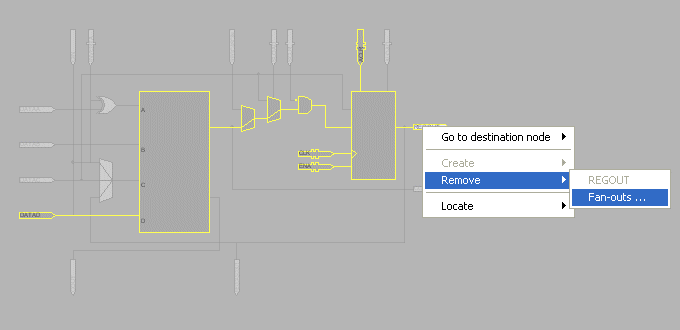
To manually disconnect the atom you want to delete from all downstream atoms, right-click its output port, point to Remove, and then click Fan-outs.

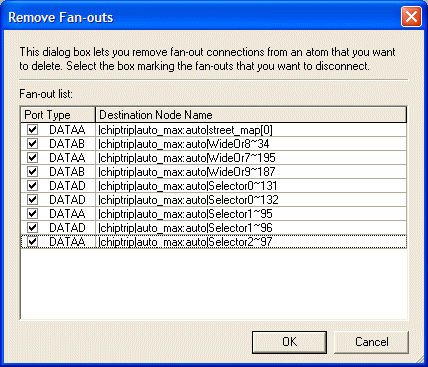
In the Remove Fan-outs dialog box, turn on the check boxes marking the fan-out connections to be removed.
Click OK to remove the fan-out connections.
|
|
Note: Some fan-out connections cannot be disconnected; all fan-outs available to be disconnected are listed in the Remove Fan-outs dialog box. |
If the atom you want to delete has more than one output port, repeat steps 2 through 4 for each output port.
|
|
Note: You must reconnect downstream connectivity after deleting an atom. For more information, refer to the following examples: |
In the Resource Property Editor, right-click the atom that you want to delete, and then click Locate in Chip Planner.
In the Chip Planner's Task list, choose a task that uses the ECO editing mode.
Right-click the atom you want to delete and then click Remove Atom.
The specified atom is removed from the design, and becomes unshaded, indicating that it is no longer in use.
|
|
Note: You cannot delete an atom without first disconnecting all its fan-out connections. |