
|
|
|
Project Navigator Window |
You open this window by pointing to Utility Windows on the View menu, and then clicking Project Navigator. |
Allows you to view the project hierarchy.
Displays, by default, the top-level design entity of the current project. After analysis and elaboration, compilation, or simulation, click the + icon to expand a top-level design entity and view the names of any sub-entities of the top-level entity.
Columns in the Hierarchy tab list resources used by the design entity (including the design entity) and the number of resources (in parentheses) instantiated by the design entity at that level in the hierarchy.

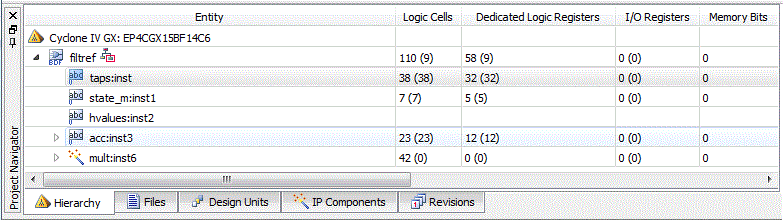
Post-synthesis values are displayed after synthesis, and post-fitting values are displayed after fitting in resource usage columns for each partition. Entity types displayed include logic cells, RAM, DSP elements, I/O registers, adaptive logic modules (ALMs), look up tables (LUTs), and adaptive lookup tables (ALUTs).
Displays the files associated with the project. Drag and drop files in the Files tab to change the order in which the Quartus II software processes them during compilation.
The file type appear on the icon next to each file name listed in the Device Design Files and Software Files folders. The Quartus II software automatically sorts all files into the Device Design Files, Software Files, and Other Files folders, according to file extensions. The Quartus II software sorts design files for Altera IP cores according to the Quartus II IP file (.qip) they are associated with.
Code |
Meaning |
TDF |
|
EDIF |
|
BDF |
Block Design File (.bdf), |
v |
|
c |
C Source File (. c) or |
Displays the design units of the project. The Design Units folder remains empty until you compile or simulate a project. Click the + icon to expand a design unit and see the file name of the file from which the design unit was generated. The entity type appears next to each design unit in parentheses and as a two-letter code on the icon representing each design unit. The codes are as follows.
Code |
Meaning |
DU |
Design Unit (unknown) |
EE |
EDIF entity |
GE |
Graphic, symbol, or block schematic entity |
TE |
AHDL entity |
VA |
VHDL Architecture |
VC |
VHDL Configuration |
VE |
Verilog HDL or VHDL entity |
VP |
VHDL Package or VHDL Package Body |
Displays the design files that make up the IP instantiated in the project, including Altera IP cores and megafunctions, Qsys components, and third-party IPs. After running analysis and synthesis on the project, click the + icon to expand an IP component and see the file name of the file from which the IP component was generated.
Columns in the IP Components tab show the status of Altera IP, entity name, IP component name, version of the tools that created the IP component, IP file name, and vendor that provided the IP component.
Icons indicate whether the IP components are up-to-date, or they are outdated components that you created in an earlier version of the Quartus II software, and should be regenerated.
Icon |
Description |
 |
Indicates that the Altera IP is up-to-date, and regeneration is not necessary. |
 |
Indicates that the Altera IP is outdated and must be regenerated, or the design will not compile successfully. |
|
Indicates that the Altera IP is dated and regeneration is not necessary for the design to compile successfully. However, Altera recommends that you regenerate to get the latest version of the IP component. |
 |
Indicates that the selected IP is regenerating. |
 |
Indicates that the IP component is encrypted. |
N/A |
Indicates that information regarding whether the IP is up-to-date or outdated is not available. |
|
For more information, refer to the Creating Qsys Components chapters in volume 1 of the Quartus II Handbook. |
Displays the revisions for partial reconfiguration. Columns in the Revisions tab list the revision name, type, and stage of compilation. The top-level revision is always the base revision, and offers different options than reconfigurable or aggregate revisions.
Right-click a revision to display the options list to create a reconfigurable or aggregate revision from a base revision, set the current revision, start compilation of a revision, open the compilation report for a revision, or delete a revision.
You can click Compile All at the top of the Revisions tab to compile all the listed revisions.

Copyright© 2005-2014 Altera Corporation. All rights reserved. ALTERA, ARRIA, CYCLONE, MAX, MEGACORE, NIOS, QUARTUS, STRATIX, and all other brands, unless noted otherwise, and/or trademarks of Altera Corporation in the U.S. and other countries.


